- भारत सरकार
- GOVERNMENT OF INDIA

Frequently Asked Question
Hon’ble Minister should follow below steps to Login:
Open the URL: https://cms.neva.gov.in/
- · And login with the Reporter Credential
- · Select your House
- · Enter User Name
- · Enter Password
- Enter Captcha and click on Login button.
Yes Hon’ble Minister can see all the documents sent by the all the departments?
The following items are available in My Dashboard
- Starred Questions
- UNStarred Questions
- Notices
- Others Papers
The following options are available under this drop down-
- Pending by department
- Sent by department
Yes, the number of the question displayed can be increased.
The following details are visible-
- Dairy No.
- Number
- Subject
- Asked By
- Papers
- Sent By VS
- Fixed Date
Yes Question can be searched.
The User need to click on the bottom right side drop down menu to increase the displayed questions number in the list.
Yes, Hon’ble Minister can see.
The hon’ble Minister need to click on the Sent By Department Sub menu under Starred and Unstarred Menu under My Dashboard.
The user needs the reply in PDF and Doc. Format for uploading the file on the platform.
By clicking on the UNstarred Tab under the My Dashboard.
The following options are available under this drop down-
- Pending by department
- Sent by department
The Hon’ble Minister needs to click on the A+/A- option available on the top of MY DASHBOARD. And then can adjust the font accordingly.
Yes, Minister can see the previous session data.
The Previous Session data can be accessed by clicking on the ‘Change’ tab available right side of the House and Session Details. After clicking on the change the House and Session can be changed accordingly.
Yes, the profile can be updated.
The Hon’ble Minister can change her profile by clicking on his name and a dropdown will be opened which has the option of Profile. Then click on the profile and update accordingly.
The process is similar to that of Starred Question.
The process is similar to that of Starred Question.
The following details can be entered in the personal details section of profile update
- User Id
- Name
- Gender
- Date of Birth
- Father’s Name
- Mobile
- Address
- Photo
- Signature
This include-
- User Type
- Sub User Type
- Designation
- Member
Yes the photo can be updated.
Yes, the signature can be updated.
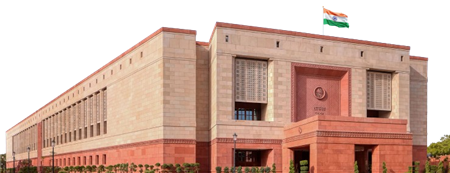 Lok Sabha
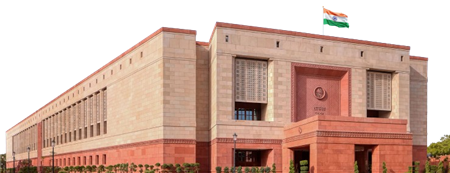 Rajya Sabha
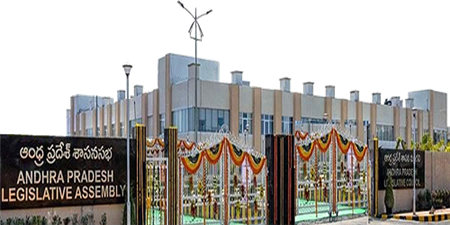 Andhra Pradesh
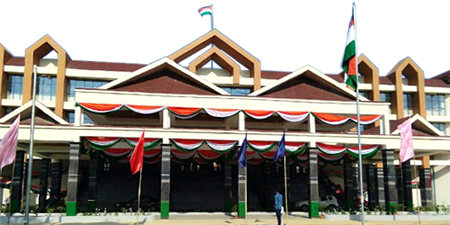 Arunachal Pradesh
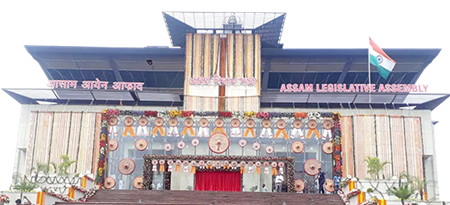 Assam
Assam
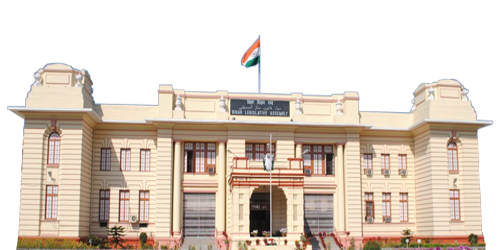 Bihar
Bihar
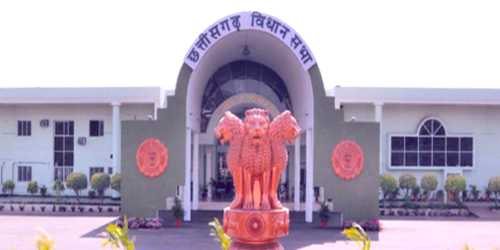 Chhattisgarh
 Delhi
Delhi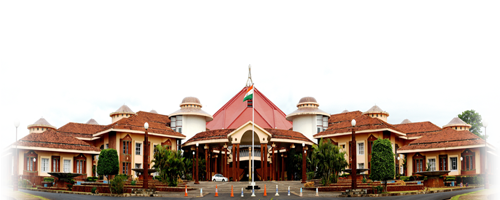 Goa
Goa
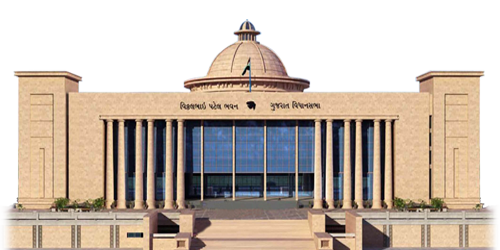 Gujarat
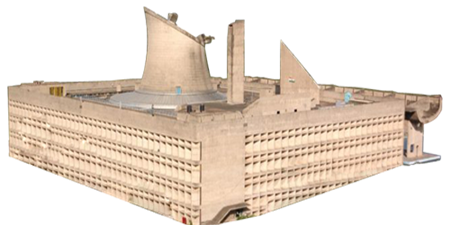 Haryana
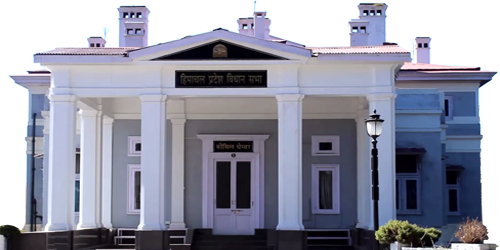 Himachal Pradesh
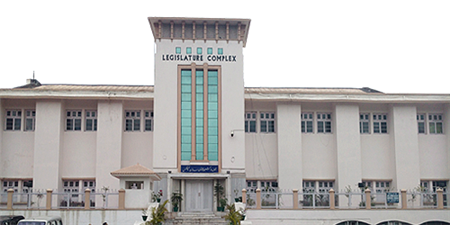 Jammu & Kashmir جموں و کشمیر
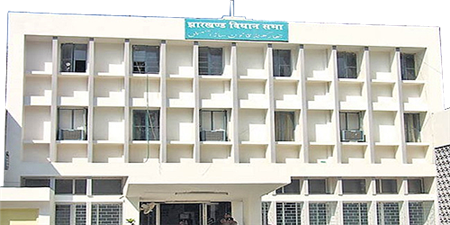 Jharkhand
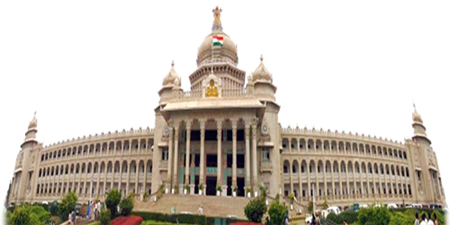 Karnataka
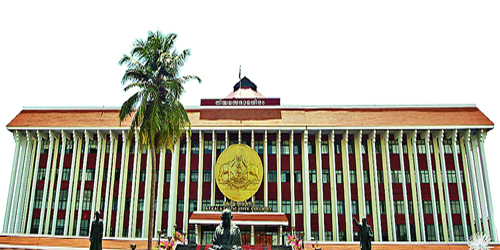 Kerala
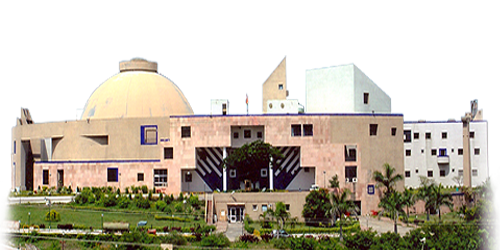 Madhya Pradesh
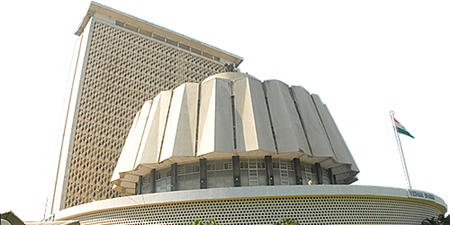 Maharashtra
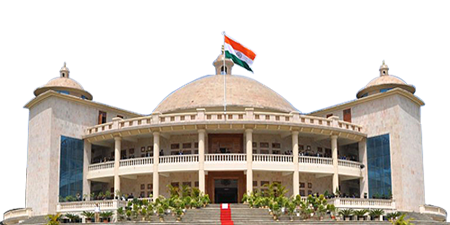 Manipur
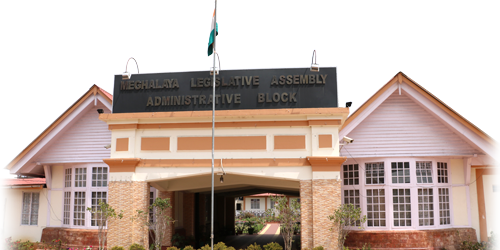 Meghalaya
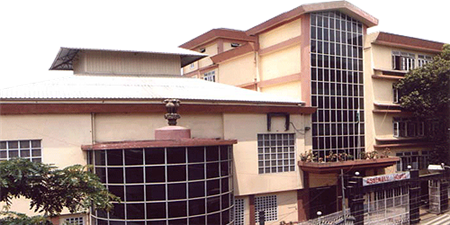 Mizoram
 Nagaland
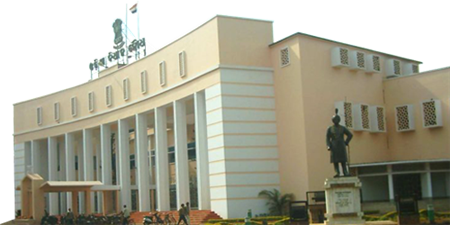 Odisha
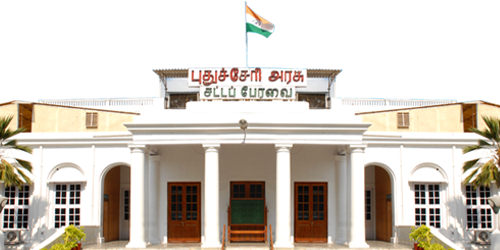 Puducherry
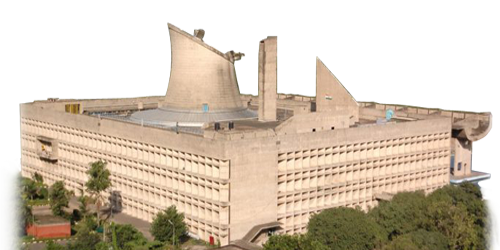 Punjab
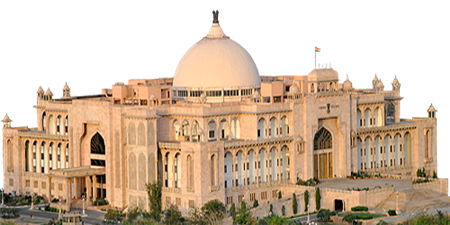 Rajasthan
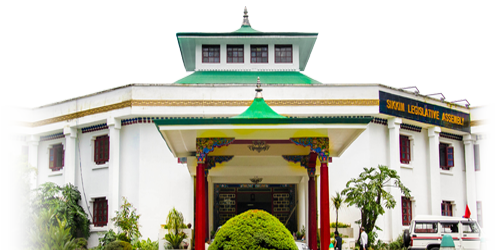 Sikkim
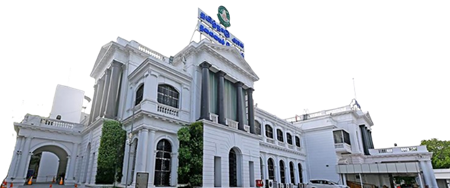 Tamil Nadu
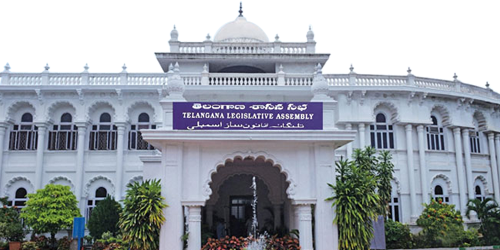 Telangana
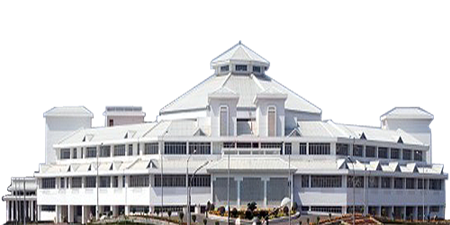 Tripura
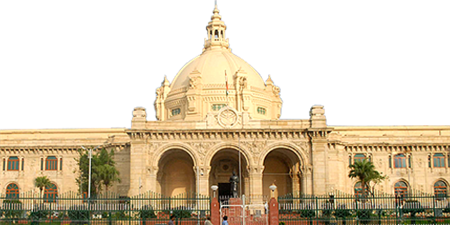 Uttar Pradesh
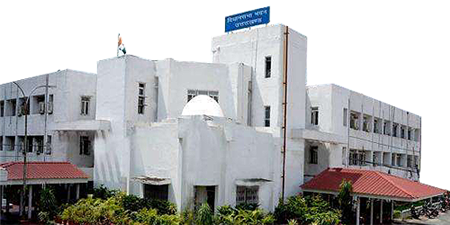 Uttarakhand
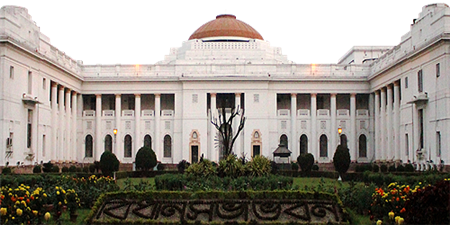 West Bengal
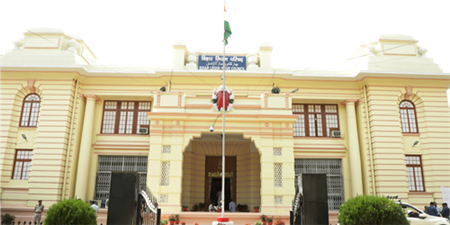 Bihar
Bihar
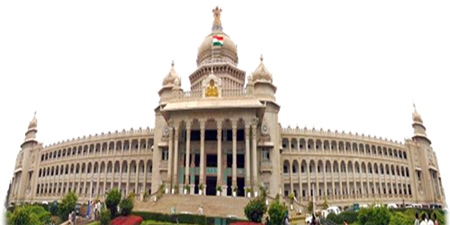 Karnataka
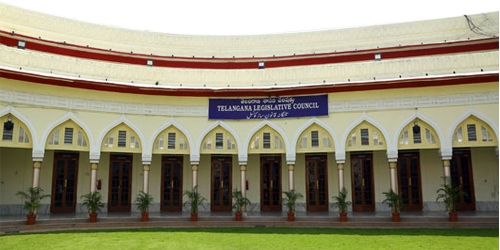 Telangana