- भारत सरकार
- GOVERNMENT OF INDIA

Frequently Asked Question
Step to Login:
Open the URL: https://cms.neva.gov.in/
- · And login with the Reporter Credential
- · Select your House
- · Enter User Name
- · Enter Password
· Enter Captcha and click on Login button.
The Reporter’s module is a work flow based web application for preparation of Verbatim Records of House Proceedings
|
The following functions can be performed-
|
To assign the role of chief reporter and reporter, one needs to be registered at the User Management Module/platform of NeVA.
This process is performed by using User Management Module of the NeVA.
Following fields are required while assigning role to the reporter/chief reporter-
- User Type:
- Sub User Type:
- Radio Button: Select “Reporter/Chief Reporter Admin”
Time slot is the time for which the reporter is active in his/her role.
The chief reporter will assign the time slot to the reporter
Login with Chief Reporter and then click on menu “Reporter Time Slots”, To Assign the Time Slots. Then click on “Assign Reporter Time Slot
Start time
End time
Duration of Time slot.
The reporter will create the file against his assigned time slot and after working on it, this file will be sent to the chief reporter.
After completion of the File by the reporter, it will be sent to the chief reporter for merging and further processing.
Yes, the file can be returned to the reporter for further modification.
Select Session Date and Click on Time Slot (turn) to upload turn file, after that Click on “Browse File” to upload the file and then click the “Save File” button.
Click on Time Slot (turn) to show drafted file. Then click “Send File to Chief Reporter” button for Sending File To Chief Reporter.
Login with Reporter admin, then click on each turn to see all turn wise files. User can add/modify reporter turn file. After vetting each reporter turn file, Reporter admin needs to Click on “Final Approval” button to approve each turn wise file
Yes, file from different reporter can be merged.
Chief Reporter is the authority to merge the files sent by the various reporters.
Document Area visible on the Chief Reporter Login consists of various house papers like-List of Business, Starred Questions, Unstarred Questions.
The following items will reflect in the activity area of the chief reporter dashboard-
1. Browse File
2. Save File
3. Approve File
4. Merge
5. Return
Chief reporter will perform the publishing of hourly verbatim on public portal.
The final document is published in the PDF format on public portal.
The chief reporter can edit, delete, and publish the final document.
The chief reporter needs to click on the published verbatim option of the reporter module to see the published verbatim
The chief reporter needs to select the session date from the drop down menu for which he wants to see the published verbatim.
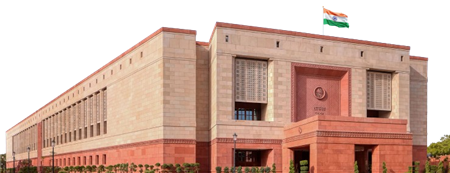 Lok Sabha
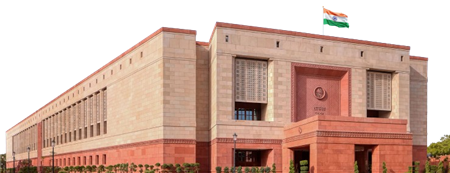 Rajya Sabha
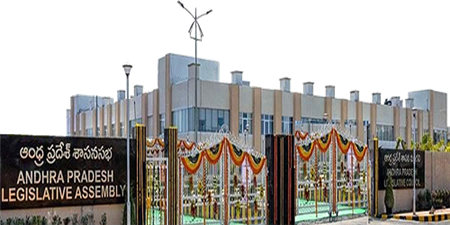 Andhra Pradesh
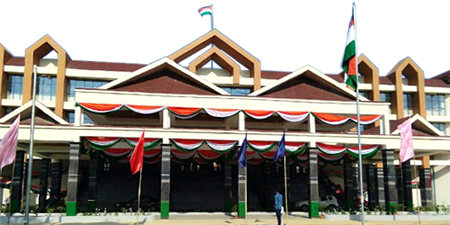 Arunachal Pradesh
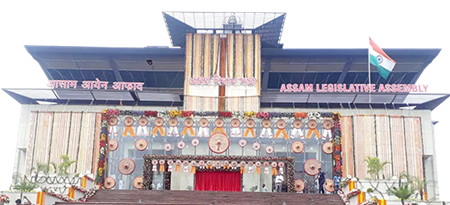 Assam
Assam
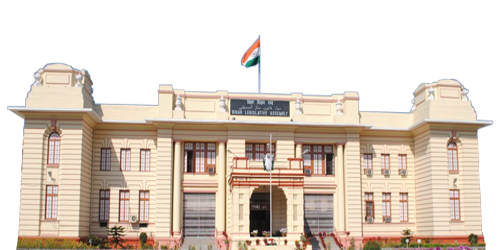 Bihar
Bihar
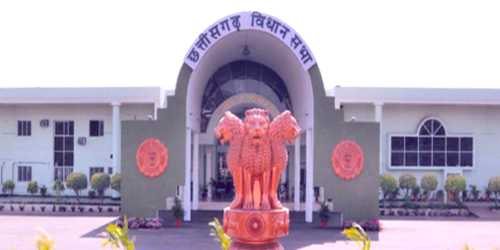 Chhattisgarh
 Delhi
Delhi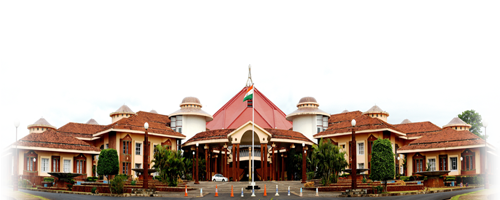 Goa
Goa
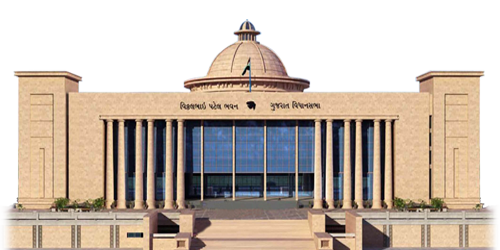 Gujarat
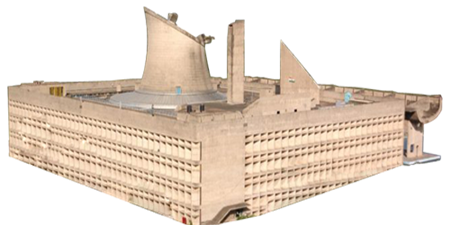 Haryana
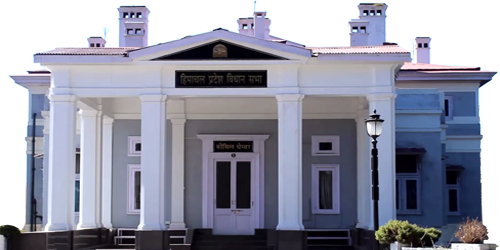 Himachal Pradesh
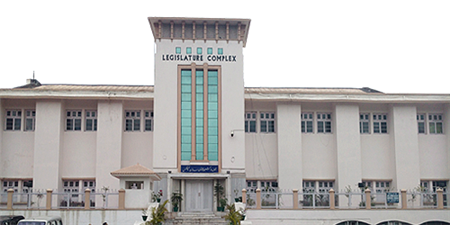 Jammu & Kashmir جموں و کشمیر
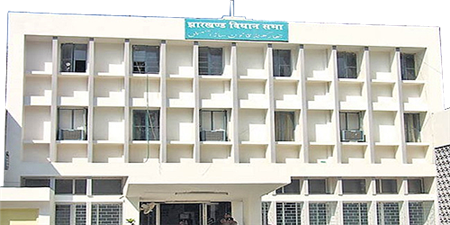 Jharkhand
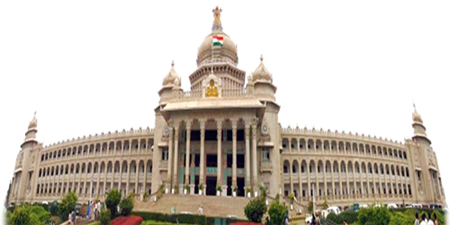 Karnataka
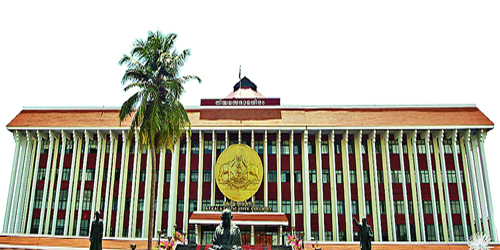 Kerala
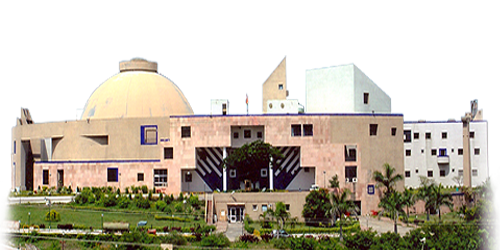 Madhya Pradesh
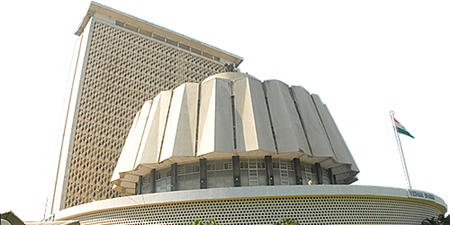 Maharashtra
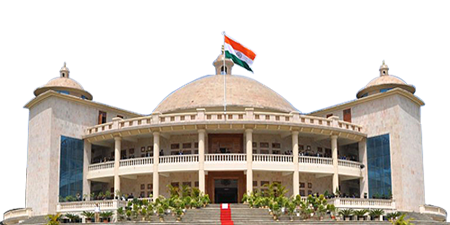 Manipur
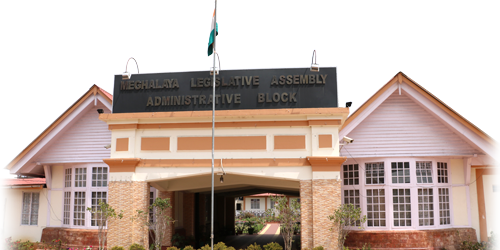 Meghalaya
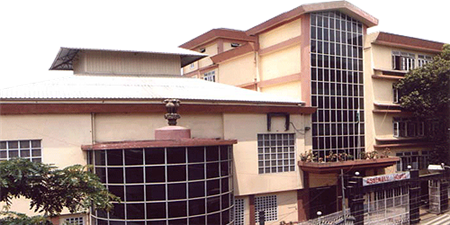 Mizoram
 Nagaland
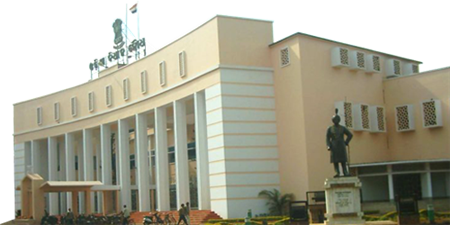 Odisha
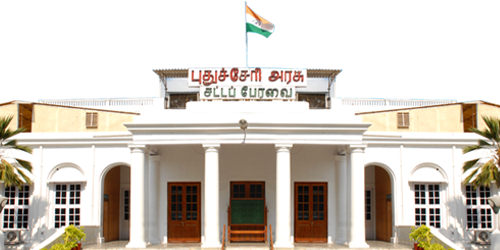 Puducherry
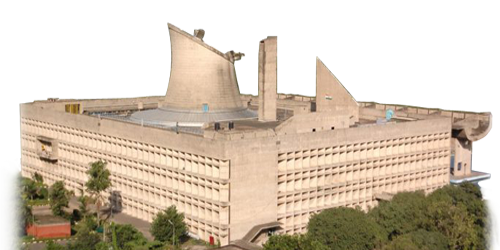 Punjab
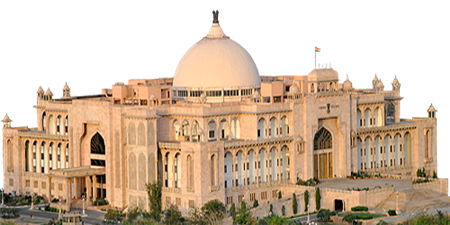 Rajasthan
 Sikkim
 Tamil Nadu
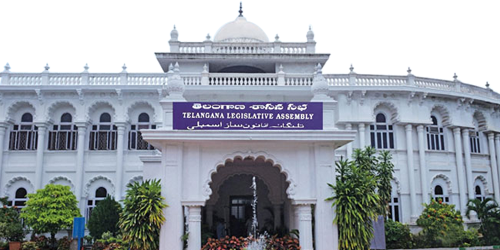 Telangana
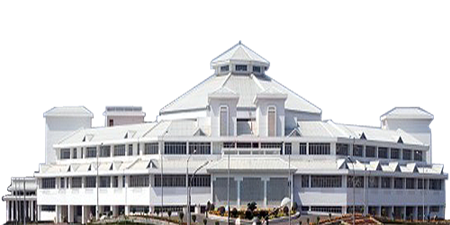 Tripura
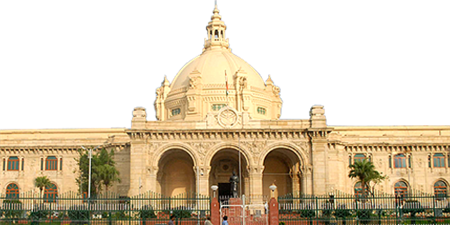 Uttar Pradesh
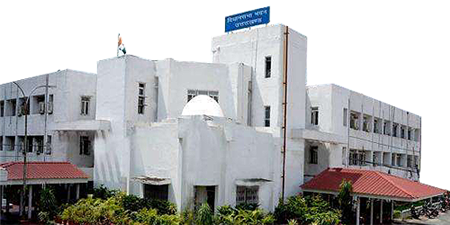 Uttarakhand
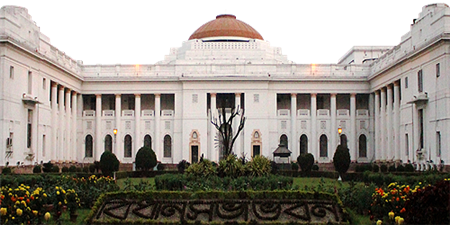 West Bengal
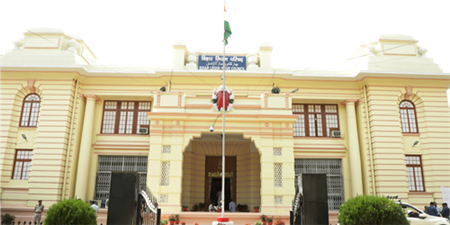 Bihar
Bihar
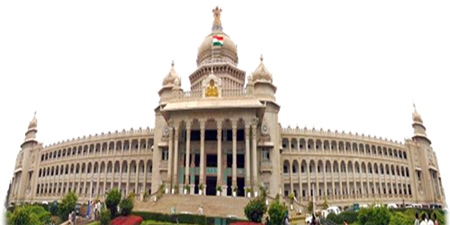 Karnataka
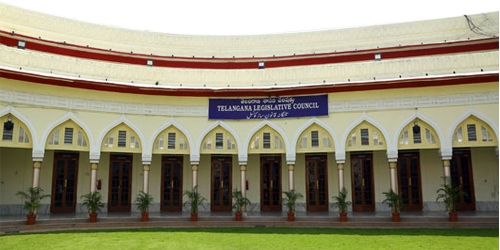 Telangana